

Browser Extension - ticura Search
ticura Search is a helpful browser extension which can be installed directly from Mozilla Add-ons for Firefox or the Google Chrome Web Store. It acts as a client for the ticura Enricher API, as such, it supports all IoC types supported by the Enricher API.
Prerequisite: ticura Enricher API Key
To be able to configure and use the browser extension it is mandatory to have an ticura Enricher API key which can be generated at your API access configuration page . By default, every user receives 5 Enricher API requests per day. If you need a higher quota, please contact ticura support.
Mozilla:
Installation
- Open Mozilla Firefox
- Navigate to ticura Search Extension using this direct link
or use Firefox'sAdd-ons Manager, which is the "Extensions and Themes" option from Firefox's hamburger menu. Tip: accessible with keyboard shortcuts; Ctrl+Shift+A (Windows), ⌘+⇧+A (MacOS)
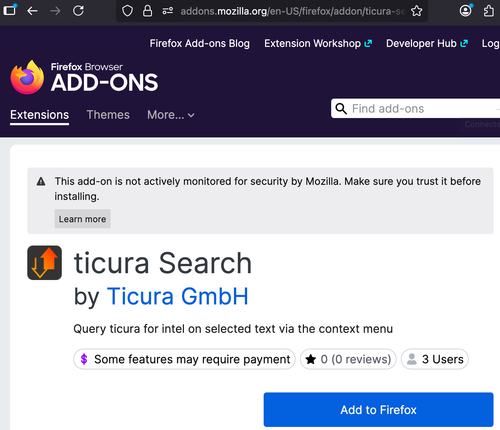
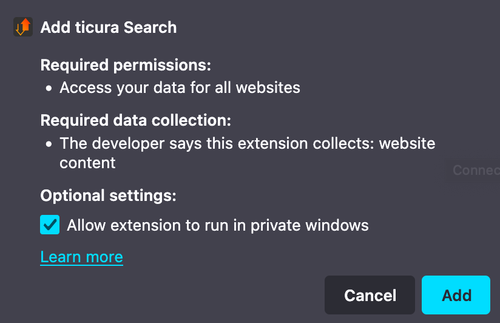
- Click on "Add to Firefox" and confirm by clicking on "Add".
Configuration
- Navigate to the
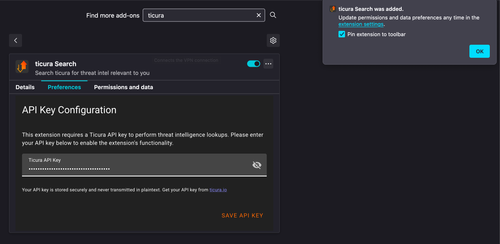
Preferencestab for ticura Search. This can be accessed through the FirefoxAdd-ons Manager, by clicking on the kebab menu for the ticura Search extension and selectingPreferences. Alternatively, clicking on the ticura Search icon in your browser toolbar will bring up a popup with a gear icon button that navigates directly to the extensionPreferences. - Add and save your Enricher API Key
Chrome:
Installation
- Open Google Chrome
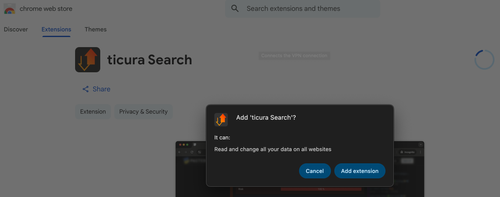
- Navigate to ticura Search Extension using this direct link or search it on Chrome Web Store
- Click on "Add to Chrome" and confirm by clicking on "Add extension".
Configuration
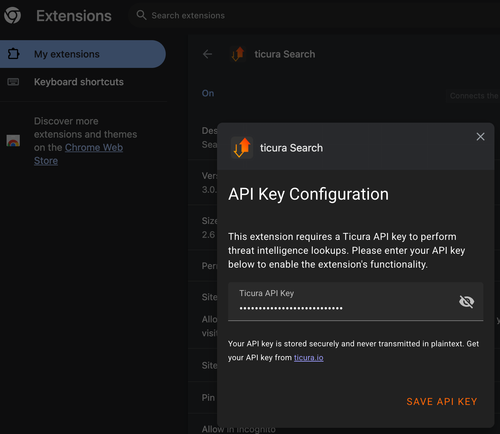
- Navigate to the
Preferencestab for ticura Search. This can be accessed through the ChromeExtensions, by clicking on the kebab menu for the ticura Search extension and selectingOptions. Alternatively, clicking on the ticura Search icon in your extensions within the browser toolbar will bring up a popup with a gear icon button that navigates directly to the extensionPreferences. - Add and save your Enricher API Key
Usage
IoC Search
- Select the IoC text in your browser tab and
- Right-click the text to open the context menu options for that text
- Select
Search ticura for <selectedText>
ticura Search Popup Menu
To open the popup menu, click on the ticura Search icon on the browser toolbar if it is already pinned there. If not, click the extensions icon button on the browser toolbar and select ticura Search, or while you are here, pin ticura Search to the toolbar.
- API Quota
Your remaining quota can be tracked here - Query Current URL
It is also possible to query the URL for the current tab