

Splunk Enterprise Security - Setup & config guide
Overview
Splunk Enterprise Security supports the consumption of Threat Intelligence Feeds provided by Ticura via Threat Intelligence Management since version 8.2.
Prepare Ticura subscriptions based on your requirements
To create a subscription, follow the steps described in the getting started guide (login required)
- Select output formats
Stix / Taxii 2.1 - Select authentication method(s)
basicAuth
Creating the subscription results in credentials and example curl code that contains the URL ( different for each output format ) to access the feed:
| Setting | Value |
|---|---|
| Taxii Base URL | https://taxii.ticura.io |
| Discovery Endpoint | https://taxii.ticura.io/taxii2/ |
| API Root | https://taxii.ticura.io/B76B1571-XXXX-XXXX-XXXX-83557F86C91F/ |
| CollectionID | B76B1571-XXXX-XXXX-XXXX-83557F86C91F |
| Username | generated-username |
| Password | generated-password |
Configure your Splunk Enterprise Security to consume the Ticura Threat Intelligence Feed
Add a new Threat Intelligence "Source" at Splunk Enterprise Security
- Login into "Splunk Enterprise" and open the "Splunk Enterprise Security" APP
- navigate to "Configure" -> "General Settings" -> "Credentials"

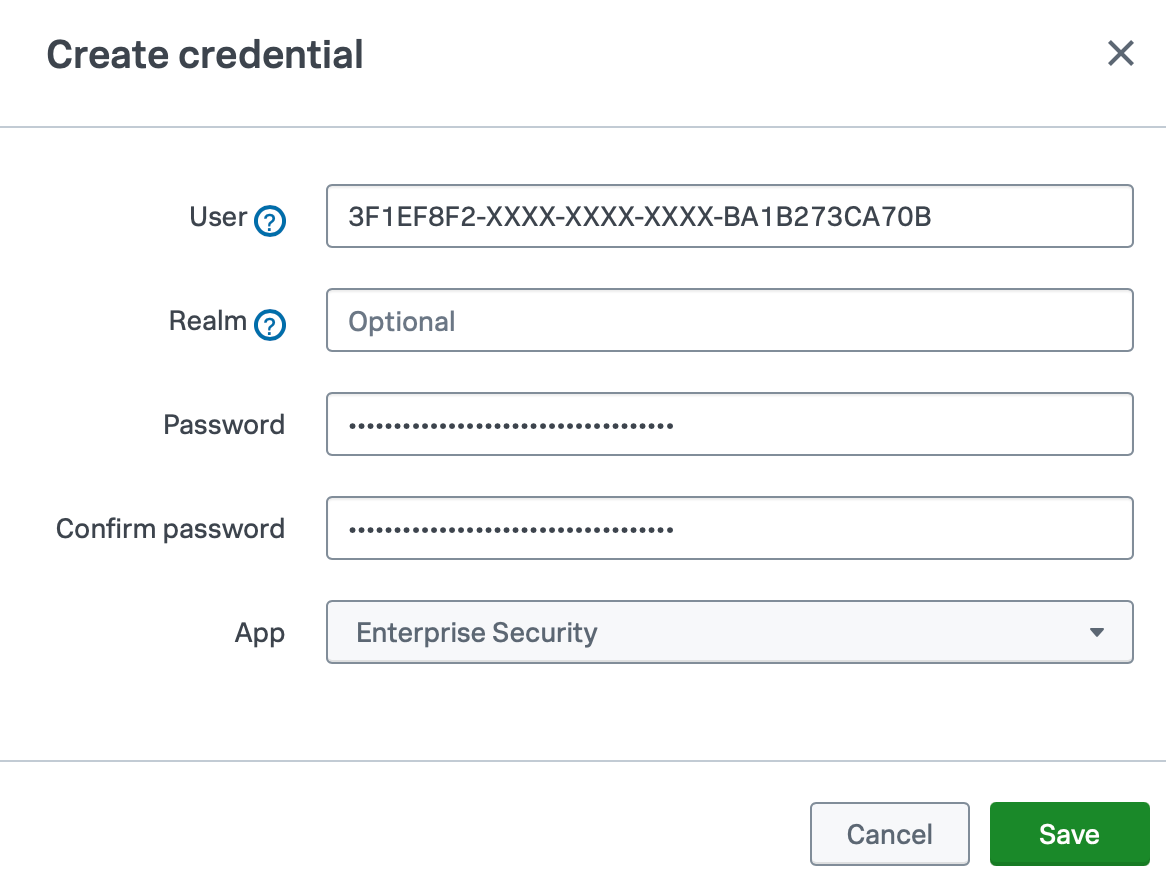
- Click "New Credential" -> configure your ticura Feed Username / Password -> Save
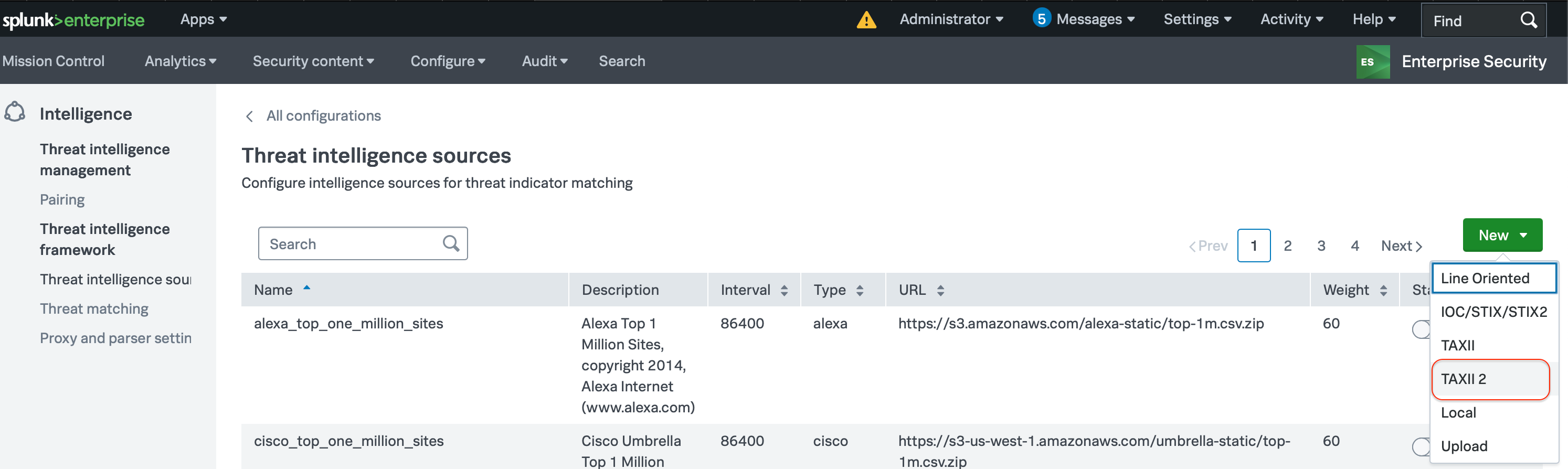
- navigate to "Configure" -> "Threat Intelligence" and Click "New" - "TAXII2"
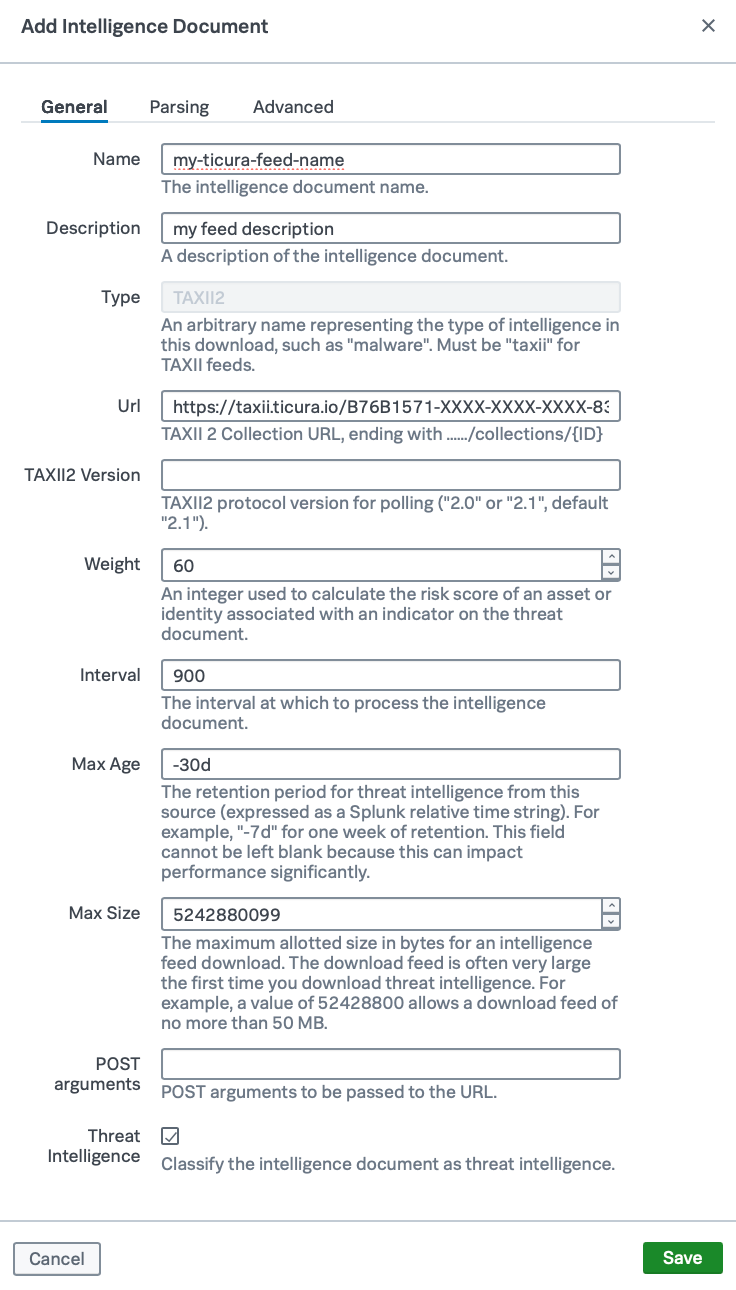
- Configure the new source with data from created subscription and save it
- General Tab
| Setting | Value |
|---|---|
| Name | my-ticura-feed-name |
| Description | my feed description |
| Url | https://taxii.ticura.io/B76B1571-XXXX-XXXX-XXXX-83557F86C91F/collections/B76B1571-XXXX-XXXX-XXXX-83557F86C91F |
| Weight | 60 |
| Interval (s) | 900 |
| Max Age | -30d |
| Max Size | 5242880099 |
| Threat Intelligence | true |
- Advanced Tab
- Remote Site User:
generated-username
- Remote Site User:
Check successful data import
- Login into Splunk Enterprise and open the Splunk Enterprise Security APP
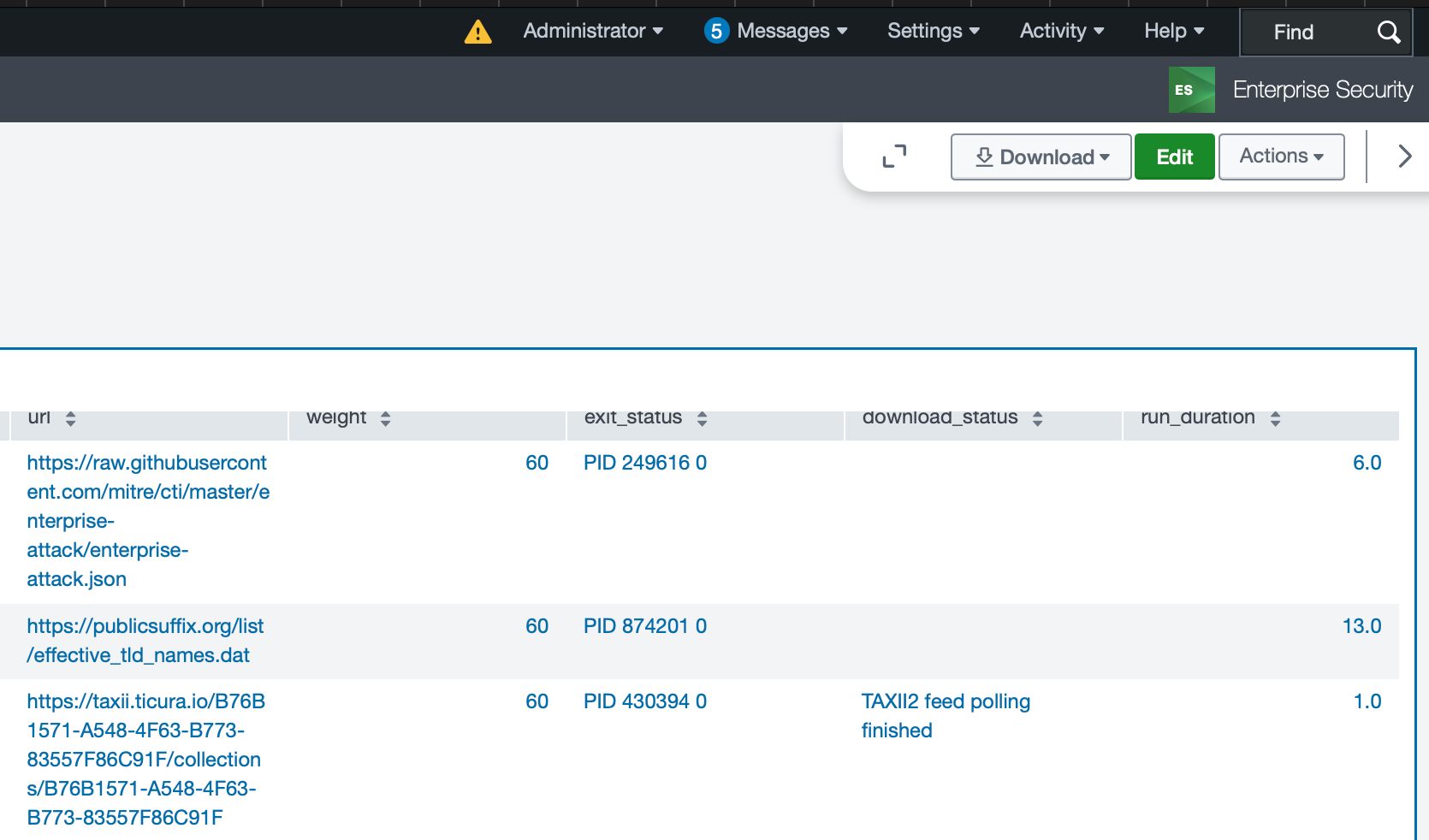
- navigate to "Audit" -> "Threat Intelligence Audit"
- check exit status of configured source / stanza. It must be 0
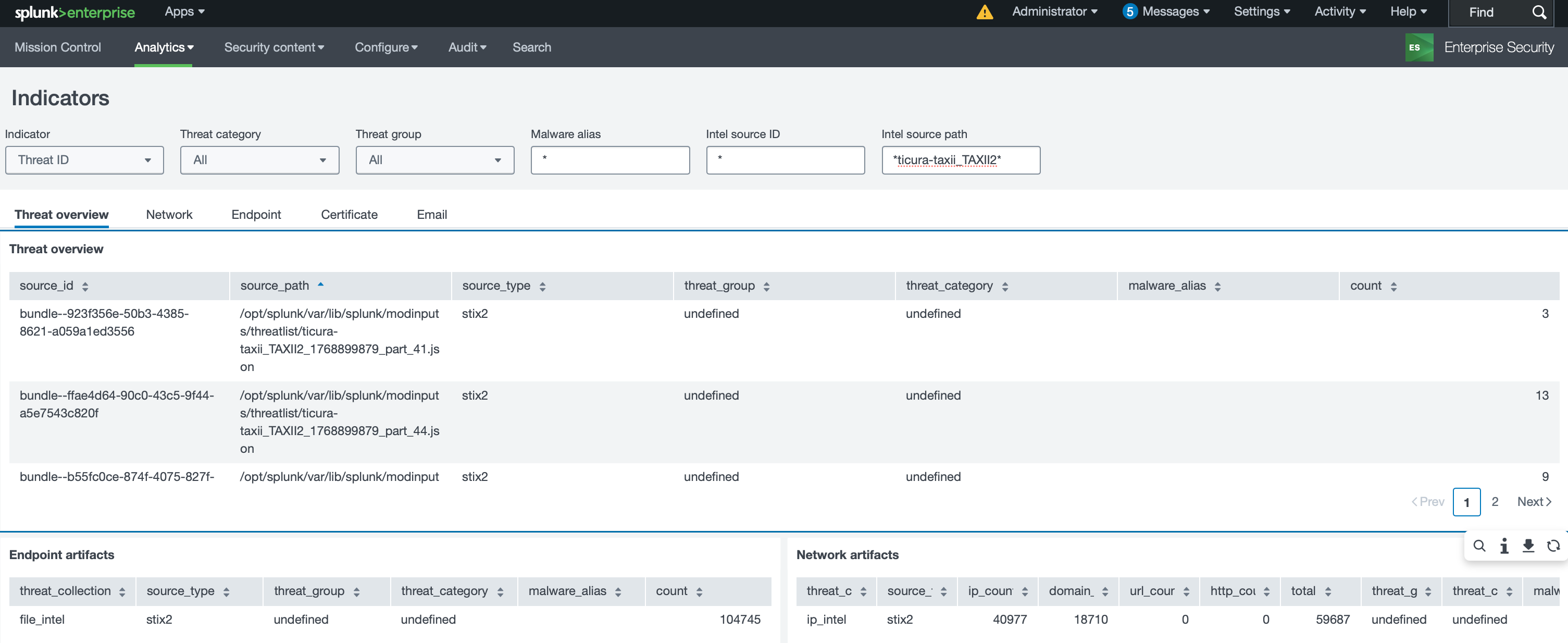
- navigate to "Analytics" -> "Security Intelligence" -> "Threat Intelligence" -> "Indicators" and ensure that artefacts have been imported
IOC Expiration / deletion
Official documentation mentions that Splunk Enterprise Security ignores the "Max Age:" Settings on TAXII2 Threat Intelligence Sources.
Imported Data will be stored until Default KV Store cleanup jumps in. Default Retention Time for EES KV Stores is 60 days. Configuration possible based on following Doku: Optimizing storage with KV Store collection retention policy