

Quick Reference
Organization of CTI Curation
- Ticura uses groups and subgroups to enable you to organize curated feeds per use case or client
- A ticura curated feed is managed as a Subscription
- After signing up you are a member of the primary master group
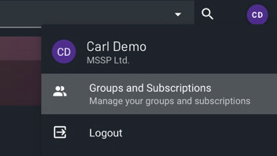
- You can edit the group name and manage your group hierarchy in your profile under “Groups and Subscriptions”
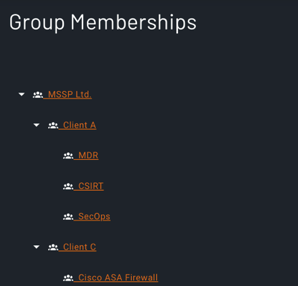
- Before creating a new feed subscription, please switch the group context to the group you want the subscription to belong to
Notes:
- To add a member of your company to your main group the new member need to sign up with the same company domain. A primary admin need to send a support request to support@ticura.io and include the new members email address and the group or groups to add the member to.
Ticura Source Recommendation Assessment – Wizard
- The Ticura Wizard guides you through the process of creating a profile for a new curated feed
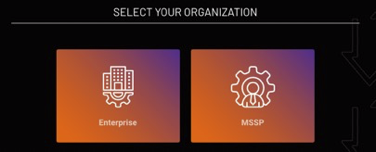
- As a Security Service Provider: to create one feed for all your clients, select MSSP in the first step
- To create individual feeds per client, select Enterprise in the first step
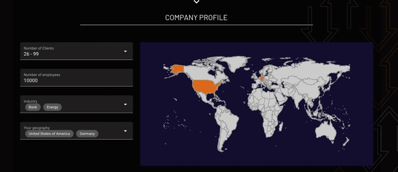
- Select the number of Clients (MSSP only)
- The number of Employees covered by the resulting curation is used to calculate the ticura subscription fee and any recommended 3rd party commercial, paid feed if applicable
NOTE: During a trial select Free Sources only as Free and Commercial sources will involve commercial sources as part of the recommendation and the curation of such will incur annual commercial fees
The recommendation supports multiple types of recommendation:
Select one or multiple Threat intelligence sources to compare their efficiency against hundreds of other sources. The result shows alternative sources to replace or complement the selected sources based on efficiency.
Upload a file with sample indicators and timestamps. The result shows which Threats have been discovered in any Threat intelligence sources and which would have been the most efficient sources to cover them in time.
Select a Threat type. The result is a set of Sources, which have been identified as the most relevant and efficient sources to cover the selected Threat type.
If you select one or multiple feeds and upload sample events the result shows you the efficiency of the selected sources to cover the uploaded security events and if there would have been more relevant and efficient sources at the time the events have appeared.
Notes: Each source compare is a live analysis. The more information a source contains the longer the analysis takes. You shouldn’t compare more than 3 sources at a time. It is recommended to compare one source at a time. A combination of Threat Type with type 1 or 2 is not yet supported. For Threat Type currently only Emerging Threats is supported.
The (de)selection of Indicators of Compromise is only considered for Emerging Threats currently.
Ticura Source Recommendation Report
The recommendation assessment report will provide a summary and details of the analysis, such as
- Statistics
- Identified Threats
- Upload Analysis report downloadable as csv
- Comparison information of compared and recommended sources
- The list of recommended sources
- Total cost of Ownership savings (TCO) calculations
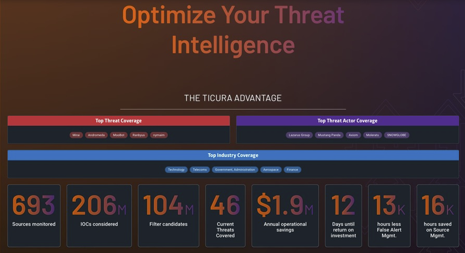
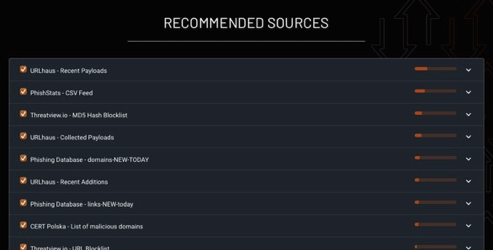
Notes:
- Not all statistics are updated if you deselect a recommended feed from the list
- If a source compare or log / sample security event upload contains information with timestamps older than 30 days the result page may show 0 in some areas.
- If one or multiple sources contain a high amount of noise (false positives, offline hosts, etc.) the savings for false positives can show a very high number.
Subscription Configuration
The consumption of the recommended set of sources is available as web downloads and requires just a few more clicks:
- Click on
CONFIGURE & BUY TICURA FEED SUBSCRIPTIONat the bottom of the Ticura Source Recommendation Report to open the feed configuration page.
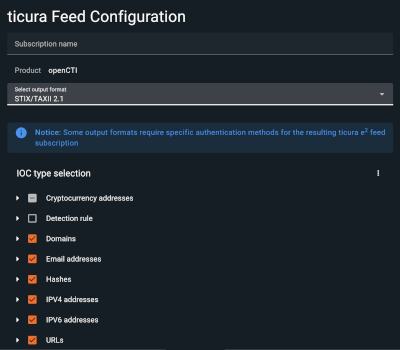
- Provide a feed name
- Select an output format – if you need a custom format, please contact us
Supported formats
Type Description - IOC types known to be supported by the selected output format will be automatically selected. These can be changed according to preference or left as is. If you wish to restore the supported set of IOC types, open the IOC type selection menu and click
Revert to initial selection.
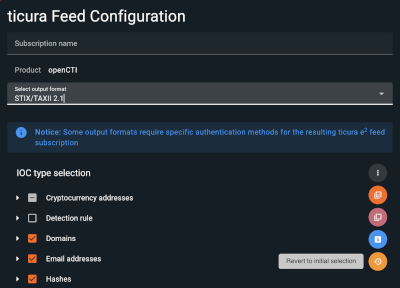
- Select your preferred authentication method: Basic Auth, API Key, or both. For some formats the authentication method cannot be changed.
- Optionally: select the enrichment information you want to be included and adjust the false positive and noise filters.
Supported Enrichments
Type Description
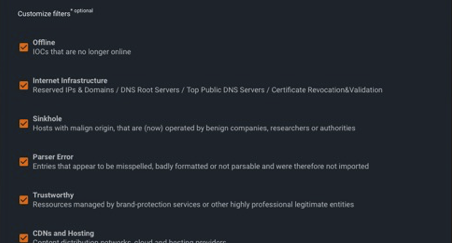
- Click on
CREATE FEED SUBSCRIPTION - Note down the feed download URL and credentials shown.
- Subscriptions and reports can be accessed later again under Groups and Subscriptions
- The subscription title and the included sources can be edited later after the initial creation on the corresponding subscription page itself
Notes:
- Access credentials are only shown once. If lost or forgotten, new credentials must be regenerated.
- It can take up to 1 hour after creation until the first download is available.
- The recommended update interval is 15 minutes.
Subscription modification
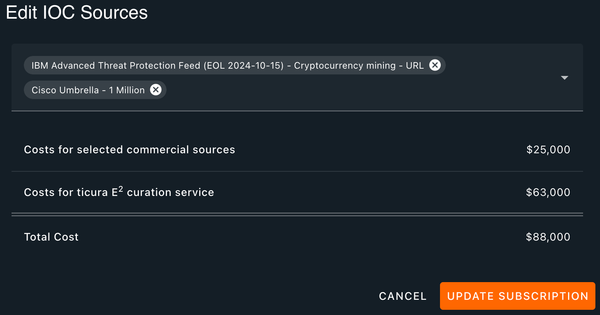
If you have the permission to edit a subscription, you can modify some aspects of existing subscriptions like name, IOC types, sources and enrichers. To do so:
- open Groups and Subscription page and choose your subscription
- to edit the name use the edit button right to it e.g

- to edit sources please open the "sources" tab of the subscription and use the "EDIT SOURCES" button to open the dialog and add or remove Intel Sources.
Ticura Search Portal
The Search Portal is a single pane of glass into all sources that ticura analyzes.
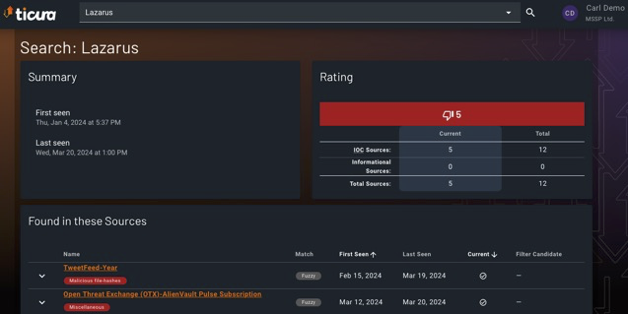
You can search for indicators, such as domains, URLs, hashes, IP addresses, and contextual information, such as malware name, threat actors, vulnerabilities
The result shows:
- current and historical Threat Intelligence Sources which include(d) related information
- Any potential false positive category assigned
- If it is an exact or a fuzzy match, e.g.: https://www.sampledomain.com/something also provides results for www.sampledomain.com
- Expanding a source in the results table shows the full record for that match (json-formatted)
Notes:
- Depending on your entitlements, additional Enrichments, Darkweb, Telemetry, and Connections tabs may be shown alongside the Sources tab, providing further detail beyond the matched sources themselves
- Directly adding sources based on search results to a new or existing subscription is not supported directly. Please contact us to help with that or create a subscription with these sources by using the wizard and either use a sample file with the searched indicators or note the name of the sources and do a source compare.
Ticura Drag-And-Drop Analysis
You can drag and drop logfiles, PDF documents, EML files, and other text-based files into our search bar. Our analytics will extract all supported indicators, and a report will be generated. The report is downloadable as a CSV file. For each recognized indicator, we display matching sources, available context, enrichment options, and more. The main purpose of this feature is to quickly identify and understand the best threat intelligence sources that cover the indicators found in the uploaded file.
Ticura EXPLAIN
Delivers the industry’s first fully specialized AI agent purpose-built for threat intelligence that speeds up and simplifies the evaluation of threats. It provides relevant information in context for both technical and business personas, based on converged, global intelligence facts. When you use our search and retrieve results, you get the Ticura EXPLAIN button to request a summary report, which is AI-generated based on all ticura intelligence. Note: By default, we provide 5 EXPLAIN requests per day. If you need a quota upgrade, please send a request to support@ticura.io.
Ticura Enricher API
Instead of manually curating a feed to use with products like MISP, OpenCTI, or similar platforms, we also provide a RESTful API to query indicators, actors, and threats. This enables global knowledge and visibility from over 1,100 sources. Enrichments include Ticura Risk and Confidence, licensing information, MITRE mappings, victimology (countries, sectors), telemetry data, and more. Responses are formatted in JSON.
Note: By default, every user receives 5 Enricher API requests per day. If you need a higher quota, please contact ticura support.
An additional upgrade to the Enricher API is our Ticura EXPLAIN API. This RESTful API endpoint can be used to offer your internal teams or customers Ticura EXPLAIN AI reports about threats and actors with reliable, converged intelligence, provided as markdown-formatted reports. AI report generation for your own portal or offering can be integrated in days, not months.
Threat Intel Extensions
For Enricher API users, Ticura offers Slackbot and browser add-on integrations. Instantly query indicators, CVEs, or actors from within SIEMs, portals, or websites. Whether through right-click in the browser or a private Slack request, your team gets converged intelligence results—without leaving their workflow. Please contact support@ticura.io to get access to the plugins and browser extensions.
Ticura Darkweb and Breach Monitoring
While proactive monitoring of darkweb threats and breaches for your organization’s assets helps you stay on top of threats, proactively taking measures against compromised data is often expensive, noisy, or too complex to manage. Ticura makes asset monitoring simple: add a new asset (e.g., your organization's email domain or IP addresses) and we monitor daily for new relevant breaches or darkweb findings. We provide deduplicated, filtered results across multiple threat intelligence providers. With Ticura EXPLAIN reports, you always get an AI-generated summary of findings for analysts and executives, instead of writing them yourself. Best of all: full cost control with a scalable pricing model—you pay a monitoring fee per asset.
Entitlements
Ticura features are activated through entitlements. Entitlements are assigned at the group level and typically inherited. Go to Groups and Subscriptions, select the applicable group, and scroll down to see all entitlements.
We support these entitlements:
- IoC Search: Access to our search portal. Guest accounts (free access, free sign-up) can only use the IoC Search and will only retrieve free sources.
- Subscriptions: Entitles the creation of a curated feed manually from a search or the IoC Sources list.
- Recommender: Entitles running a Source Recommendation Assessment to compare sources and identify the best for a given profile (e.g., by industry, region, budget, threat type). Drag-and-drop logfile analysis requires this entitlement.
- Enricher API: RESTful API access to query indicators, actors, threats, and more. Optional entitlement: EXPLAIN API queries.
- DarkWeb Search: Entitlement to add assets for darkweb and breach monitoring, and to retrieve EXPLAIN reports on any findings. Pricing is by asset unless otherwise agreed.
Manage Lists
For each group, you can manage your own indicator lists. Benign indicators can be added to the Allow list, serving as false positive prevention or filtering. Anything you add here is automatically filtered from all curated feeds (subscriptions) belonging to this group. Anything added to the Deny list is included as a malicious indicator in all curated feeds under the active group. If Darkweb Monitoring is entitled, you will also see the Assets list. Any asset added activates darkweb and breach monitoring or searching for that asset.