

MISP Extended Export Format
Data import
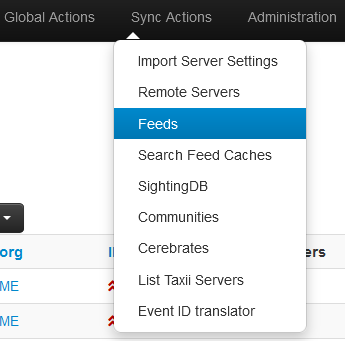
1. The ticura feed is imported into the MISP instance via Sync Actions -> Feeds
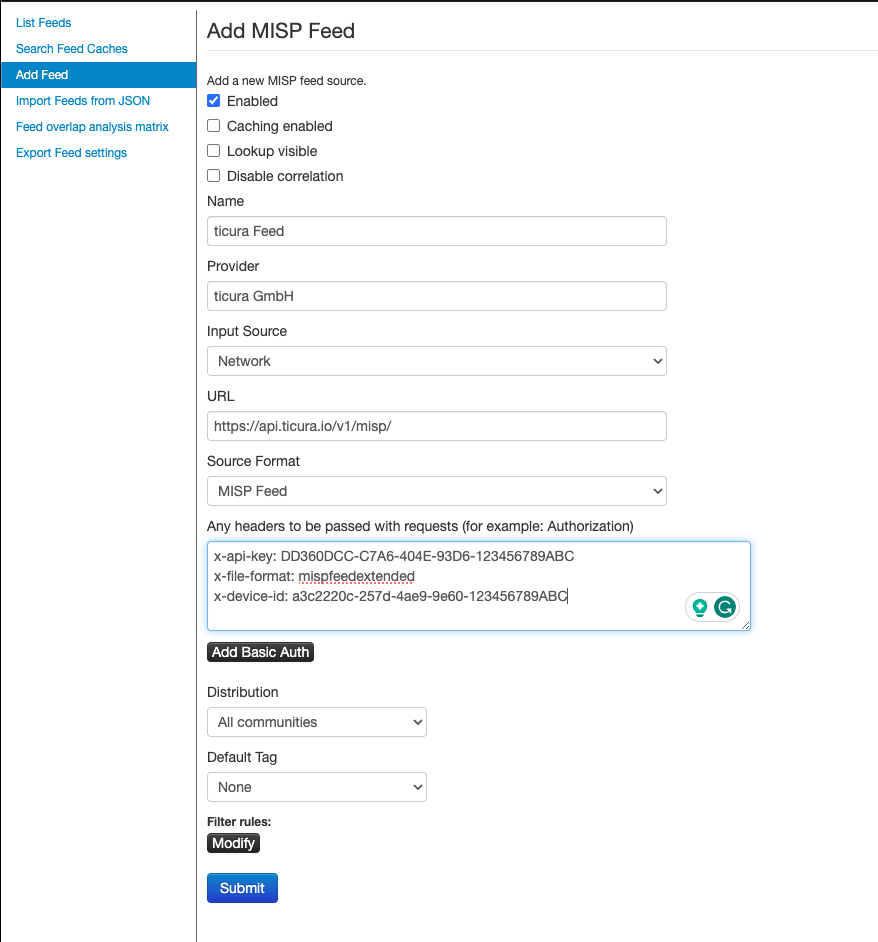
2. Choose Add Feed and fill in your data:
To authenticate your MISP instance with our download server, you must authenticate via the x-api-key header field and the API key received from Ticura. x-file-format and x-device-id header fields are optional but recommended to be set.
- x-file-format specifies the MISP export format (either MISPFEEDEXTENDED or MISPFEEDBASIC)
- x-device-id specifies a device ID chosen by you. We recommend using a UUID (https://www.uuidgenerator.net/) per device. The device ID will be used to optimize the export schedule for the device at our side
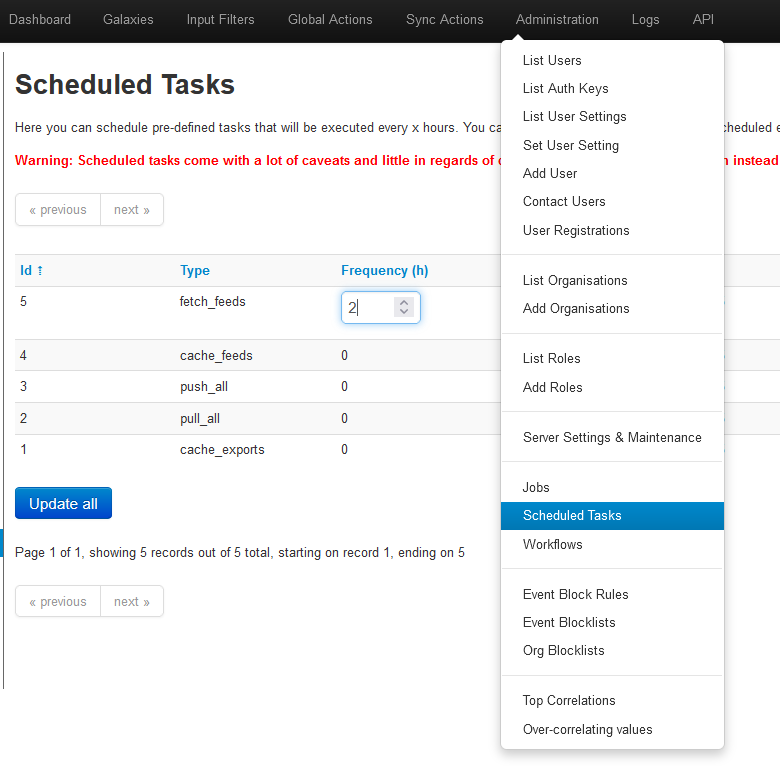
3. Update schedule
By default, MISP will update all feeds once a day via a schedule. We recommend updating more frequently to keep your instance up to date. For this purpose, the MISP offers a parameterization under Administration -> Scheduled Tasks. Unfortunately, this function often does not seem to work. In these cases, you will find instructions on how to set up a cron job at the bottom of this page.
Data structure & types
- the ticura feed data is subdivided by daily events
- within events, we make use of template-based objects, attributes and object references
- the following semantic objects are unique per event and linked to the IOCs carrying objects via object references:
- CTI sources, MISP identity object
- Sinkhole Operators, MISP identity object
- Scanner Operators, MISP resarch-scanner object
- Reporters/Contributors of CTI sources, MISP identity object
- Infrastructure Operators, MISP infrastructure object
- correlation is only enabled for IOC representing attributes and their normalized forms; e.g. domain in case of an IOC of type URL
- the to_ids flag is only set to true for the complete IOC according to the source. Taking the example www.example.com/pathToSomewhere we would make use of the Misp URL Object template with the following attributes:
host:           www.example.com                 -> to_IDS: false
domain:         example.com                     -> to_IDS: false
resource_path:  pathToSomewhere                 -> to_IDS: false
url:            www.example.com/pathToSomewhere -> to_IDS: true
Tagging & Galaxies
- tags are only added to IOC carrying attributes which are set to_ids=true
- in addition to normal tags we also add MISP Galaxy tags which are automatically assigned to the Galaxies column. To ensure the assignment you probably need to activate the Galaxies in your MISP instance.
MISP GALAXY examples:
- misp-galaxy:malpedia
- misp-galaxy:threat-actor
- misp-galaxy:botnet
- misp-galaxy:mitre-attack-pattern
- misp-galaxy:mitre-ics-groups
- misp-galaxy:mitre-ics-software
- misp-galaxy:mitre-ics-tactics
- misp-galaxy:sector
- misp-galaxy:country
TICURA specific tags:
ticura:source="_name of the source_"ticura:category="_name of the malicious category_"
MISP Taxonomies
Furthermore different MISP taxonomies are frequently used:
- tlp:amber - Traffic Light Protocol
- type:OSINT - for gathered information from OSINT sources
Aging and revoking IOCs
In order to keep the customer MISP engines in sync with the selected CTI sources and ensuring a fast revoke mechanism for false positives, we make extensive use of the MISP deletion workflow. If an IOC or its enrichment is dropped for any reason the customer exports contain the deletion of objects, attributes and object references for a time period of 3 days. Make sure your MISP engine pulls the data in a higher frequency to prevent any artifacts.
Setting up a cronjob for pulling the feed with a higher frequency
Setup a user to trigger the update via API call
If you already have an admin authentication key, you can skip this step!
- Log in as an admin user to your MISP instance and list all authentication keys
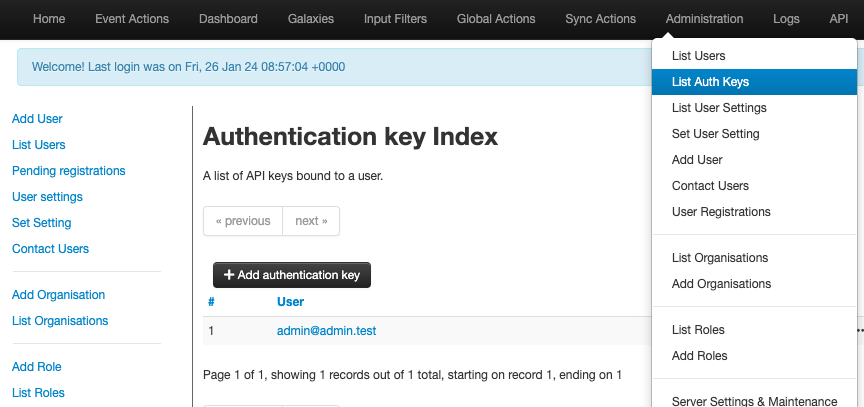
- Click on Add authentication key and leave a comment to track the purpose of the key issued.
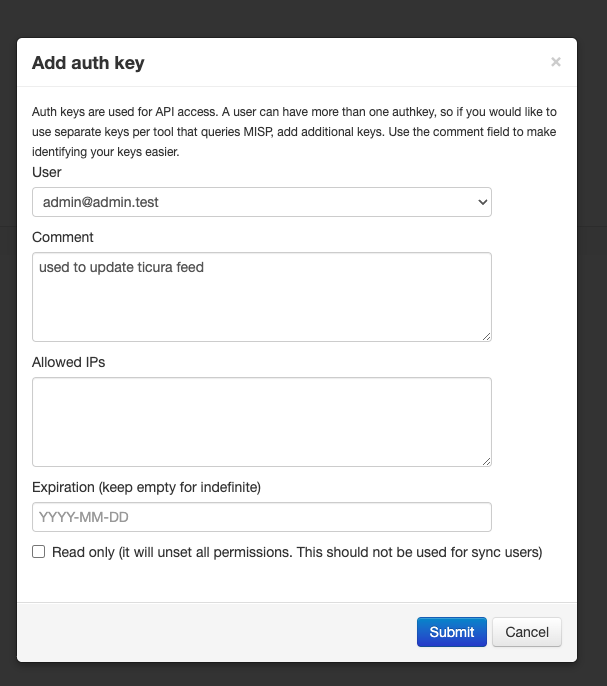
- Copy and store the API key shown in the next step
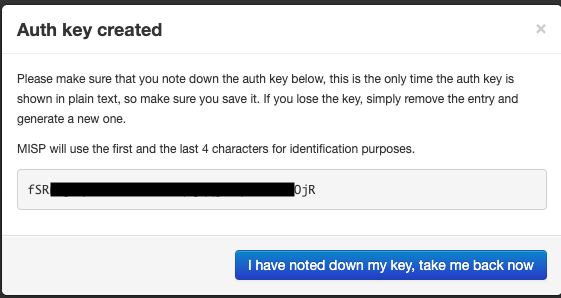
Determine the feed to update and configure the cronjob
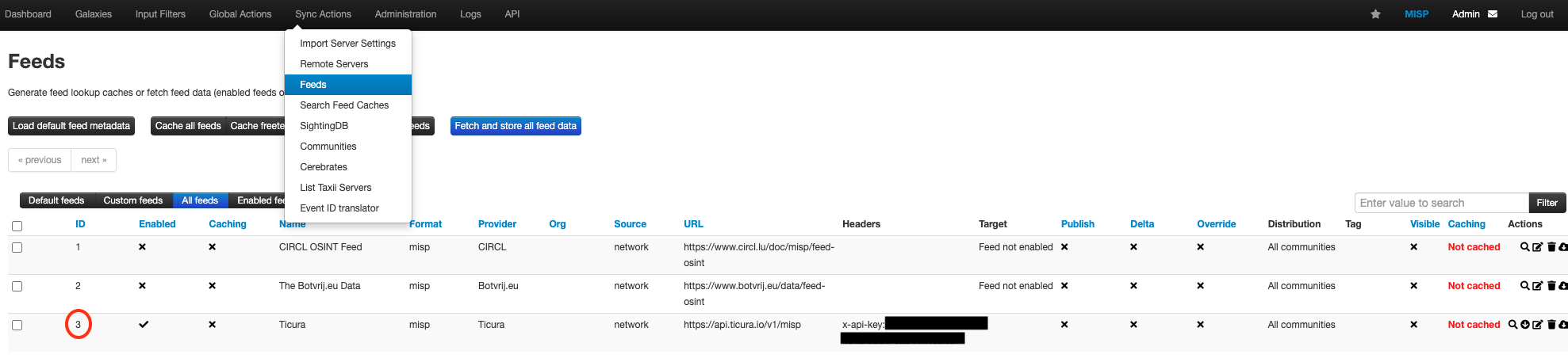
Write down the Feed ID (Marked red)
Replace the Paste_Your_API_Key_Here and YOUR_FEED_ID with your data and run the following command on the prompt of your
echo '00 */2 * * * curl -i -k -H "Accept: application/json" -H "Content-Type: application/json" -H "Authorization: Paste_Your_API_Key_Here" "https://localhost/feeds/fetchFromFeed/YOUR_FEED_ID"' >> /etc/cron.d/feedupdate_ticura
This will schedule the update every 2 hours. If you run into performance issues during the import, we recommend increasing the interval.