
Setup & config guide for Fortinet Fortigate Nextgen Firewall
Overview
Fortigate supports the consumption of Threat Intelligence Feed provided by Ticura.
By using the "External Connectors" it is possible to consume different types of Threat Intelligence Feeds like FortiGuardCategory (URLs), IP Address, Domain Name and Malware Hash.
Attention
The Fortigate NGFW consumes separate feeds to import Threat Intelligence data into different modules. To get optimised performance and recommendation please create one subscription per "Module / Threat Feed type" you need.
| Fortigate Module | Threat Feed Type | Ticura IOC Type |
|---|---|---|
| Web Filter | FortiGuardCategory (URLs) | URL |
| Firewall | IP Address | IPV4, IPV4RANGE, IPV6, IPV6RANGE |
| DNS Filter | Domain Name | DOMAIN |
| AntiVirus / external malware block list | Malware Hash | HASHSHA256 |
Prepare Ticura subscriptions based on your active Fortigate modules
To create a subscription, follow the steps described in Ticura Source Recommendation Assessment – Wizard (login required).
- On Technical Environment, Step 2 (Select a group to improve CTI for my sector ) use the following settings:
- Select a group to improve CTI for my sector: Network / Email / Web / Identity Security
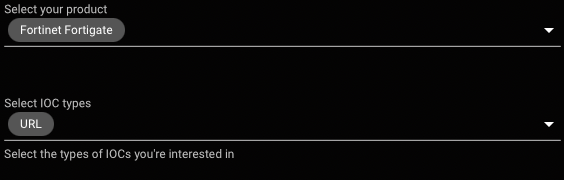
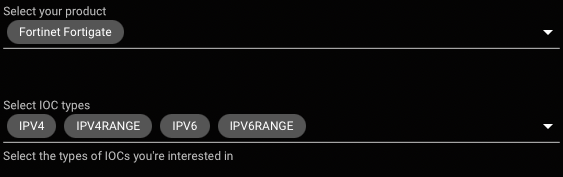
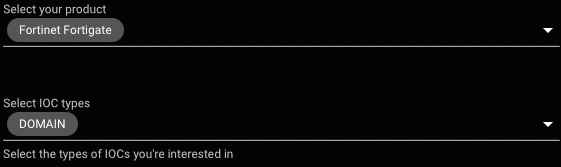
- Choose your product: Fortinet Fortigate
- Select IOC types(make your choice based on the Fortigate Threat Feed you want to configure)
- FortiGuardCategory (URLs)
- IP Address
- Domain Name
- Malware Hash
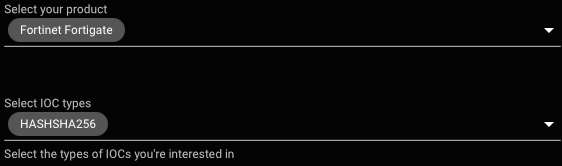
- FortiGuardCategory (URLs)
- After the report generation click CONFIGURE & BUY TICURA FEED SUBSCRIPTION and use the following settings:
- Select output formats
(make your choice based on the Fortigate Threat Feed type you want to configure)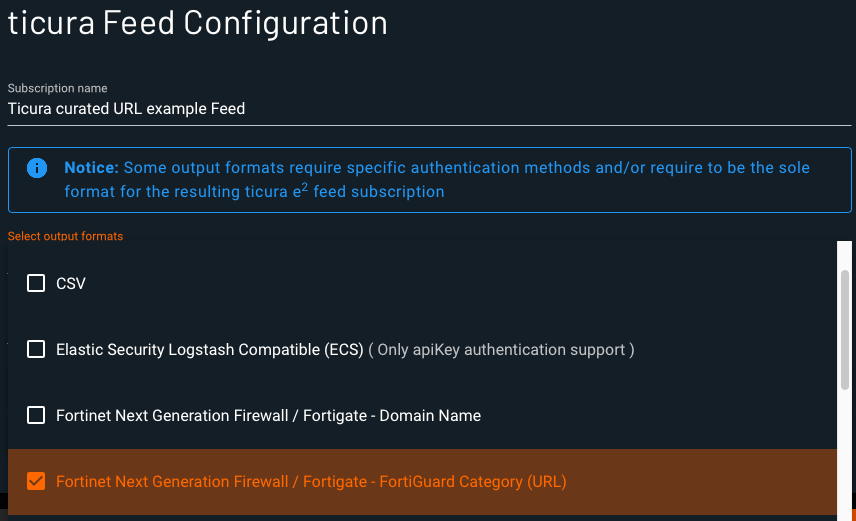
- Select authentication method(s)
apiKey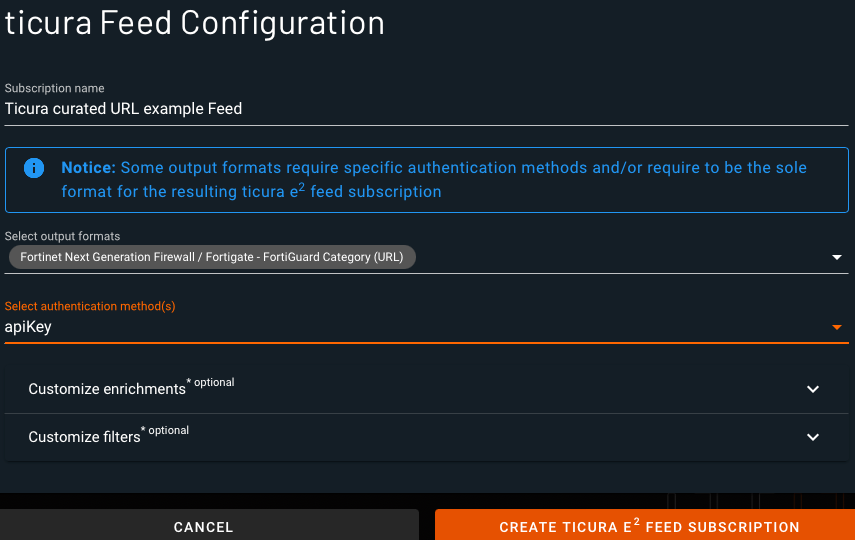
- Select output formats
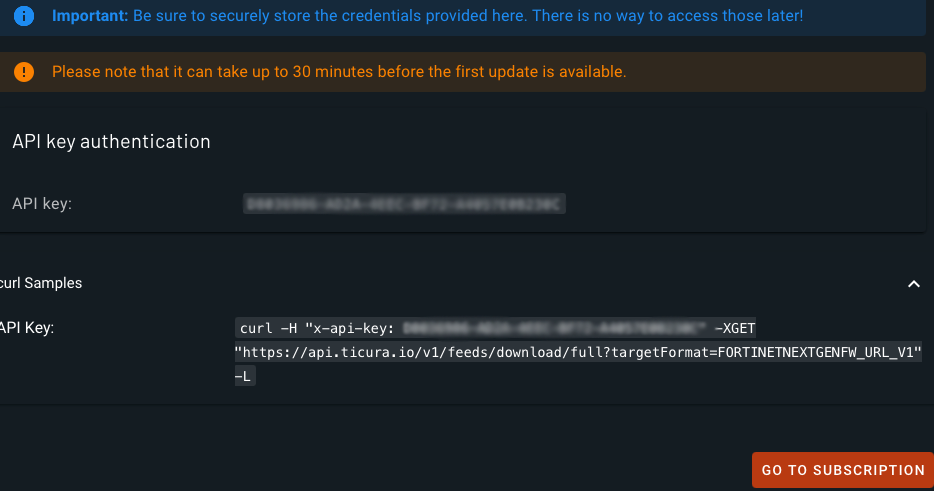
Creating the subscription results in API Key and example curl code that contains the URL (different for each output format) to access the feed:
- API Key:
generated-api-key - URL:
https://api.ticura.io/v1/feeds/download/full?targetFormat=FORTINETNEXTGENFW_URL_V1
Add a new Fortigate External Connector to use the Ticura Threat Intelligence Feed / Subscription
- Login into the NGFW
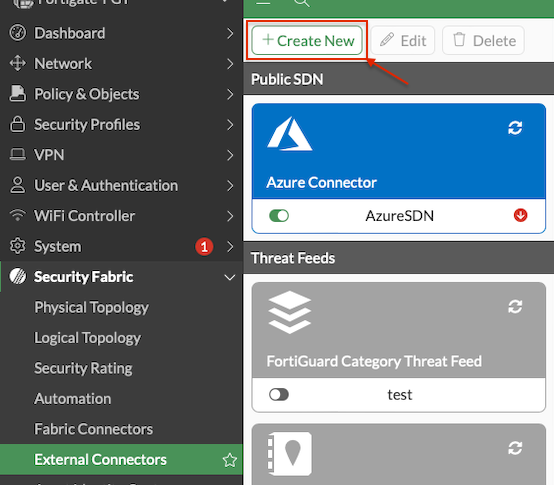
- navigate to "Security Fabric" -> "External Connectors"
- Click "Create New"
- Choose the Threat Feeds type
(make your choice based on the IOCs within created subscription)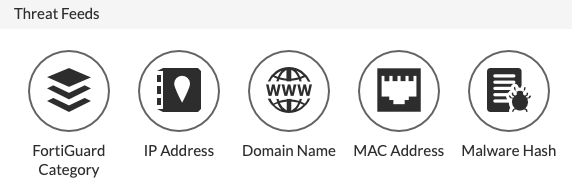
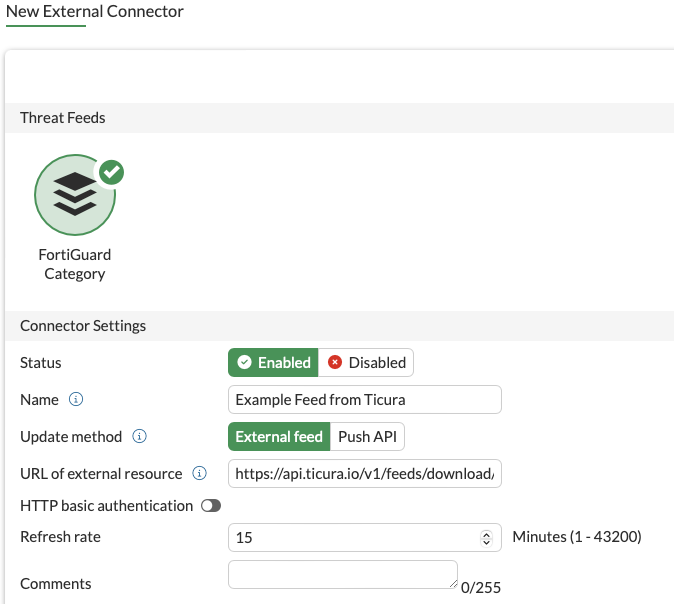
- Configure the Threat Feed using the data from created subscription and save it
- Status: Enabled
- Name:
my-ticura-feed-name - Update method: External feed
- URL of external resource: URL from subscription curl example e.g.
https://api.ticura.io/v1/feeds/download/full?targetFormat=FORTINETNEXTGENFW_URL_V1 - HTTP basic authentication: disabled
- Refresh rate: 15 (minutes)
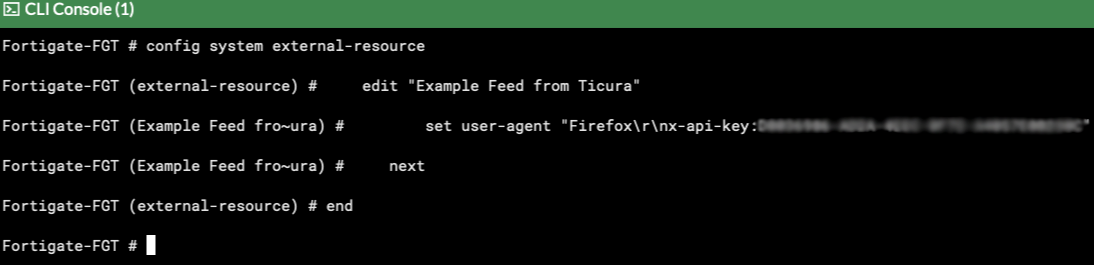
- Open CLI Console and add API Key to your new Feed by running the following code with your data

config system external-resource
    edit "my-ticura-feed-name"
        set user-agent "Firefox\r\nx-api-key:generated-api-key"
    next
end
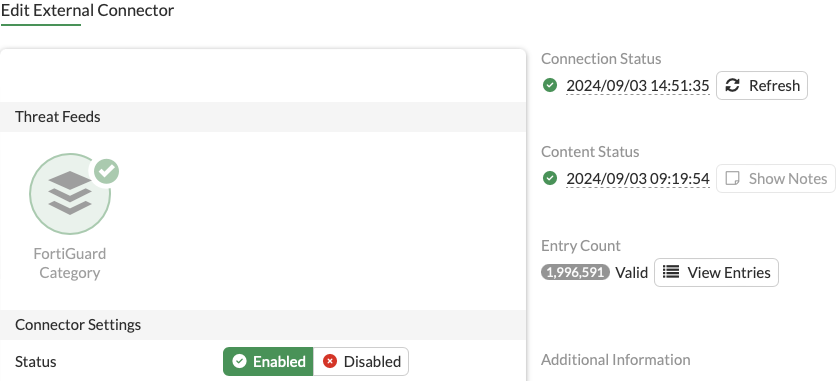
- Open the saved "External Connector" and check "Connection Status" / "Content Status" / Entry Count / Valid Entries